▶️ Bonuses
On the payroll page, there is an option to add additional payments for employees, such as bonuses or compensations. To do this, a + Add bonus/compensation button is located above the table. When this button is clicked, a modal window opens, where you can select the type of payment, specify the amount, and fill in other necessary details.

+Add a bonus
In the ITFin system, you can also add a negative bonus, referred to as a deduction, if needed. To do this, simply select the + Add bonus option and enter a negative value in the amount field, which will then be deducted from the total payment.

▶️ Bonus Approval
The system allows you to configure an additional approval workflow for bonuses assigned to employees. This is useful when the permission to add bonuses is granted to a limited role (for example, a Team Lead for their own team or a Project Manager for their own project), while the final approval of the bonus should be provided by a higher-level approver, such as a Finance Manager or a C-level executive.
The approval policy can be configured in Company → Settings → Approval Policies → Bonuses. Enable the Use approval workflow option for the corresponding row, then specify the initiators and approvers.
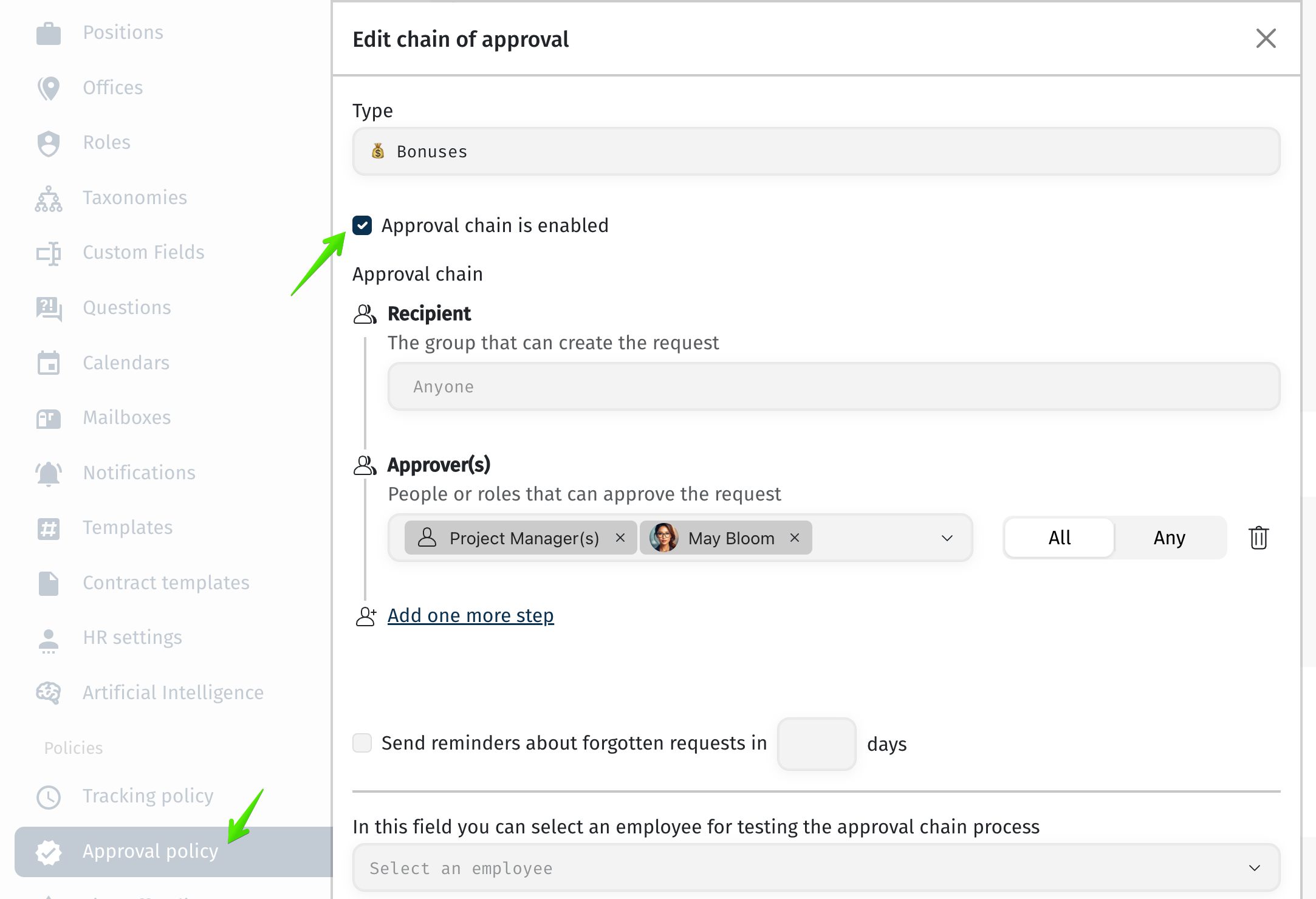
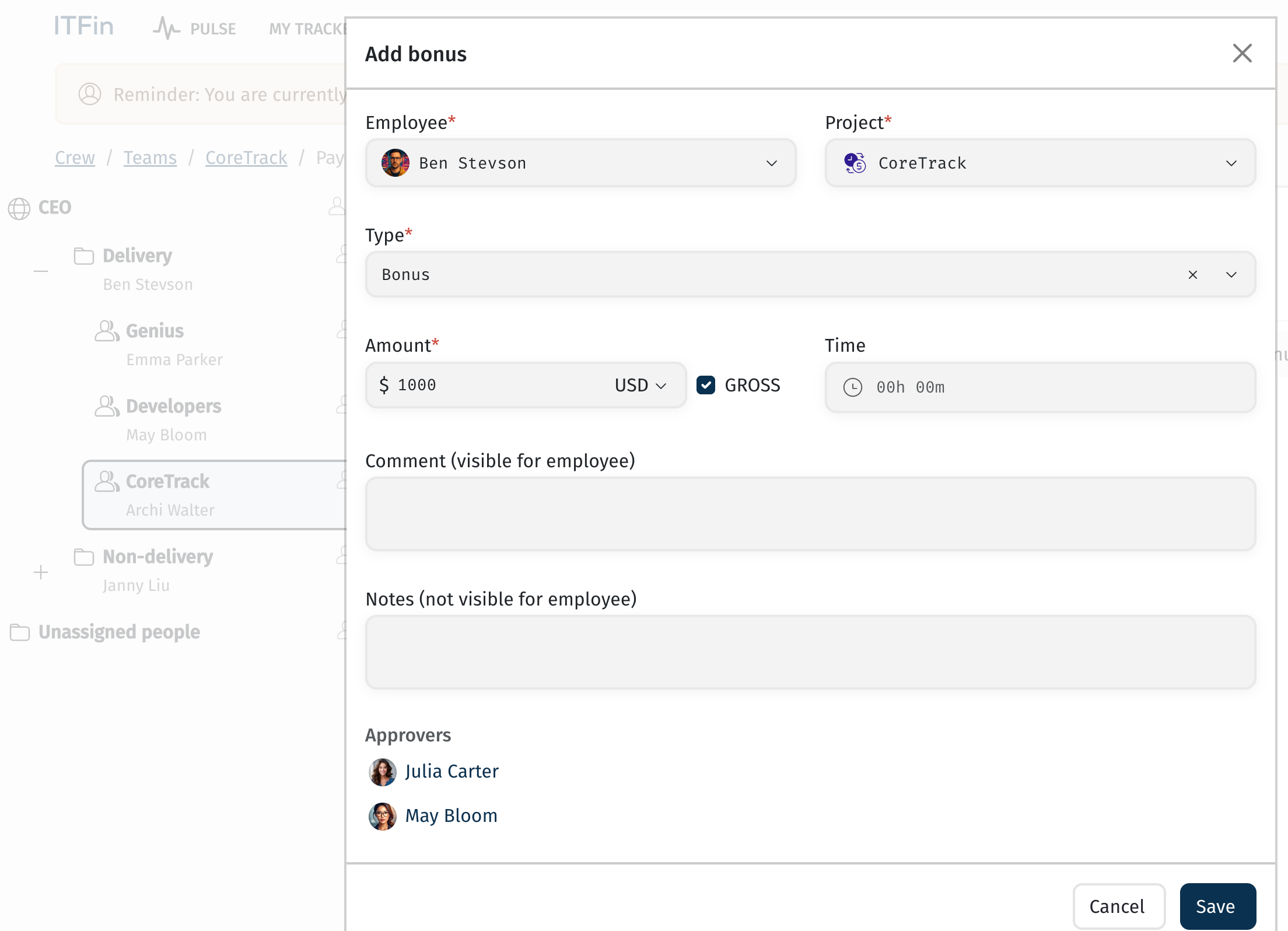
If the approval workflow is enabled, clicking + Add Bonus will no longer add the bonus directly. Instead, the request will be sent for approval according to the configured approval chain.
Approvers receive notifications about pending requests both in the system and by email. They can open the request and approve or reject it directly from the notification, or navigate to Team → All Requests → Pending Approval. The My Requests tab allows request creators to track the status of their own requests.
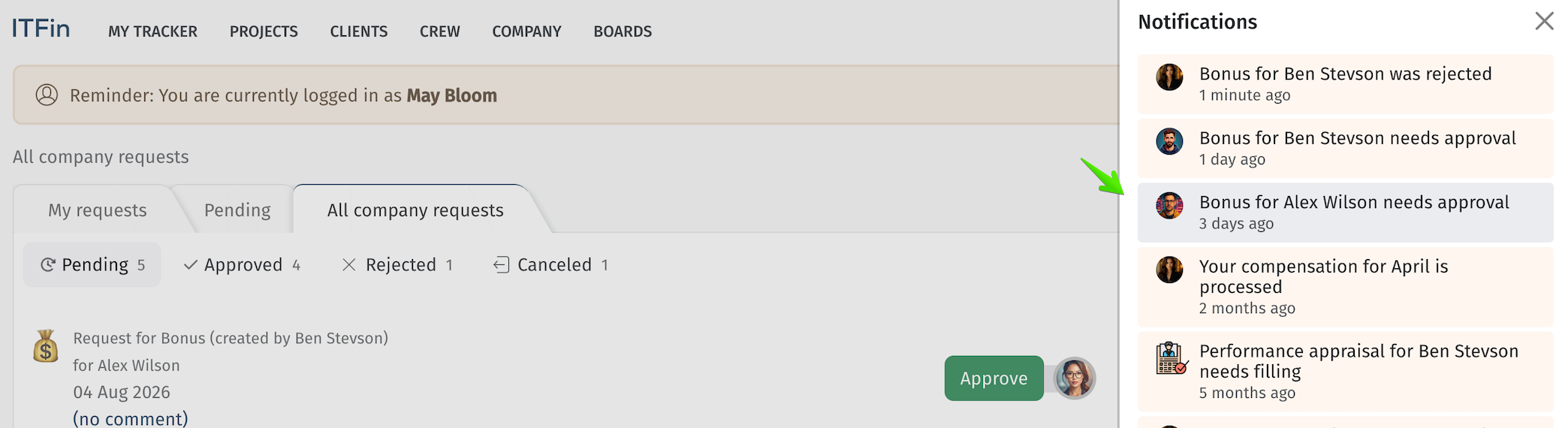
All pending bonus approval requests can also be viewed in Company → All Requests (access is controlled by the requests_can_see_all scope in the role settings).
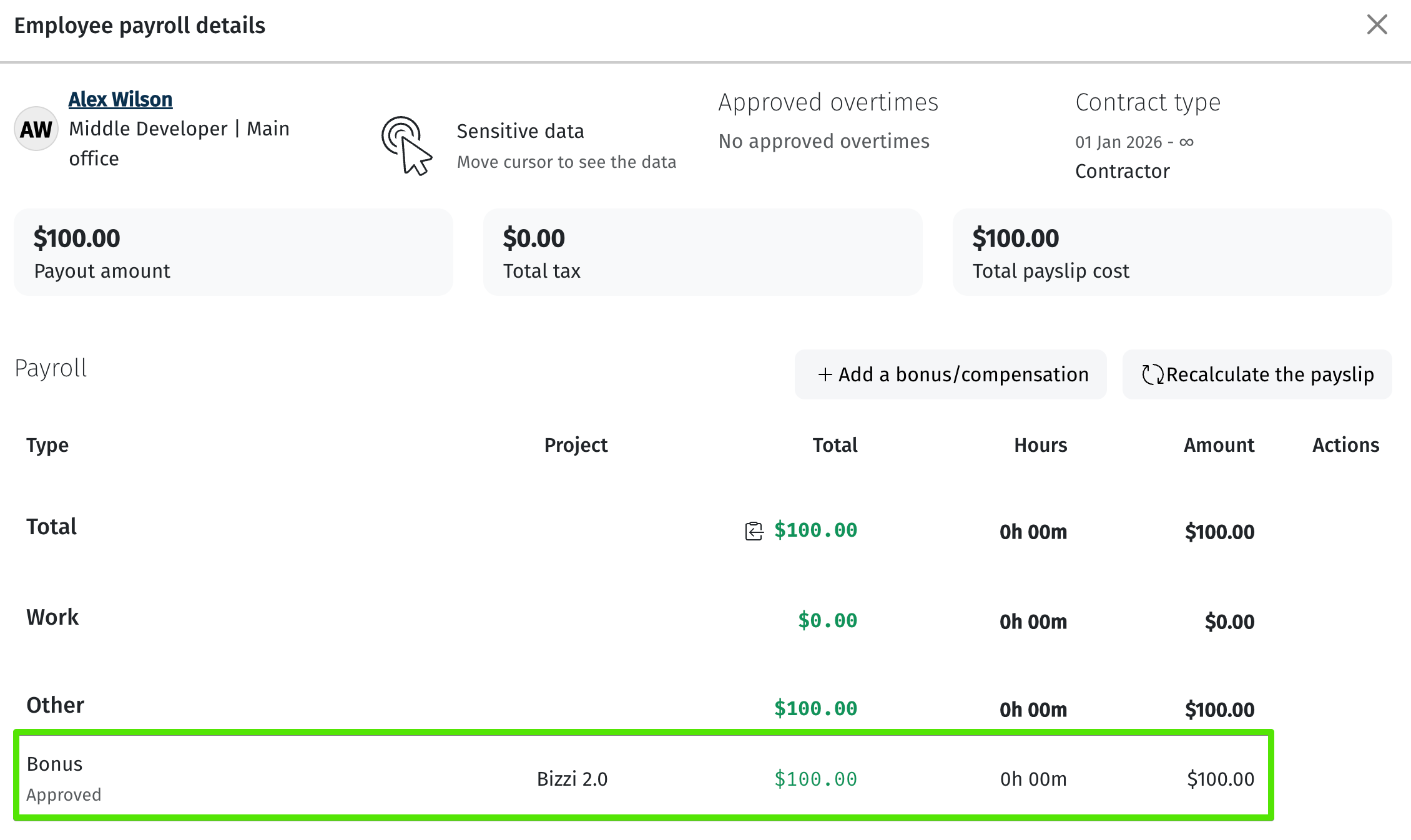
Once a bonus or commission has been approved according to the configured approval workflow, it is automatically added to the employee’s payroll.
▶️ Commission & Bonuses
The system allows adding referral payments for employees, which is particularly useful for the company’s sales managers. These commissions can be added to the employee’s profile by navigating to Crew > Employee Name and then clicking + Add commission/bonus in the Commissions & Bonuses window.

New commission/bonus

The system offers the following types of commissions
-
Fixed — a fixed amount for payments. For this type of commission, it is possible to select the payment currency. When calculating the salary, this amount will be converted based on the NBU exchange rate on the date of the commission.
-
Percent from transactions — a percentage of the project’s income for the reporting month.
-
Percent from invoices — a percentage of the total amount of invoices for the project in the reporting month.
-
Percent from invoice lines — a percentage of the invoice line for the project in the reporting month (e.g., for a specific employee).