The Trial Balance report is located under Company > Trial Balance.
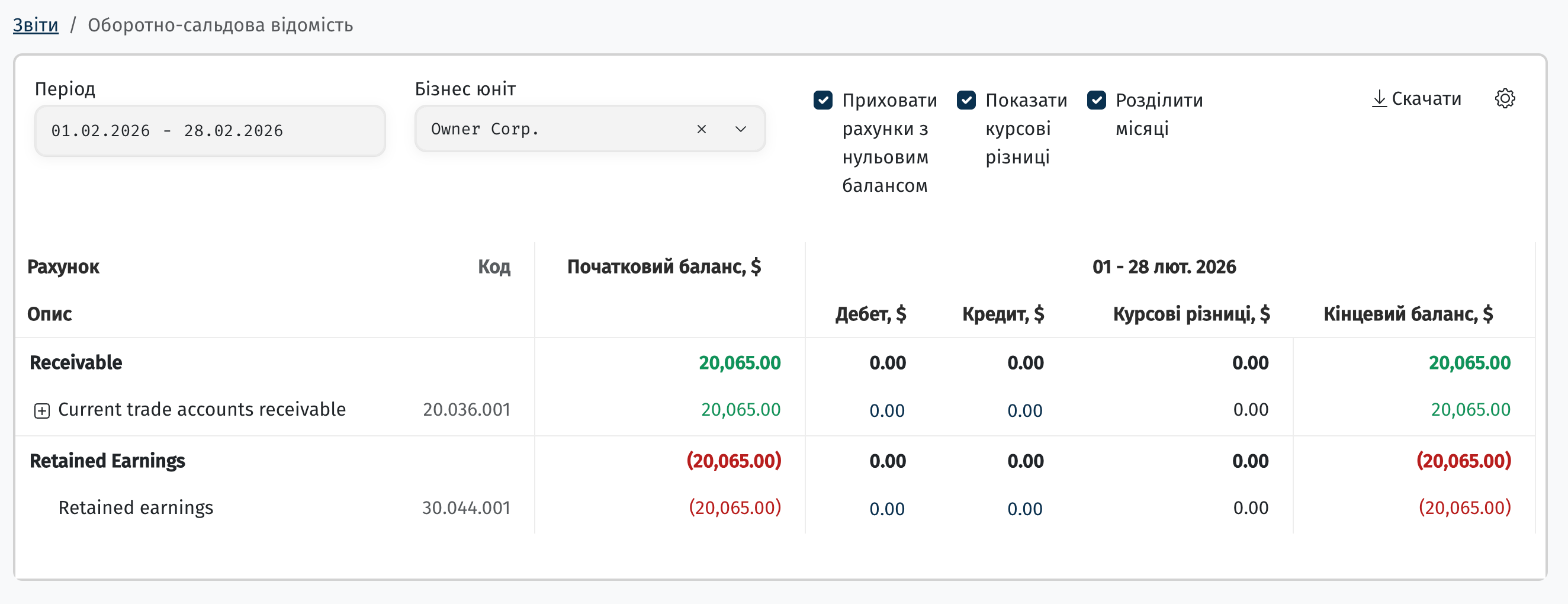
The Trial Balance report shows the movement of funds for every account of your company over a selected period: the account category, the account itself and its code, the opening balance, debit and credit turnover, foreign exchange differences, and the closing balance. The report is fully detailed and includes all accounts, which lets an accountant thoroughly verify the data.


The report can show either only accounts that had movement, or the full list of accounts, including zero-balance ones.
Filters and report settings
Above the table you can find:
-
Period — the date range for which the report is generated.
-
Business unit — selects which business unit's data to display.
-
Hide zero-balance accounts — leaves only accounts that had movement during the period.
-
Show FX differences — adds a separate column for foreign exchange differences (relevant for multi-currency accounts).
-
Split by months — breaks the selected period into separate months, each with its own "Debit / Credit / FX differences / Closing balance" columns.
-
Download — exports the report to a file.

Why the Start balance matters
The opening balance is the account's balance as of the first date of the selected period. If you choose a period from July 15 to August 30, the "Opening balance" will be shown as of July 15. It's the starting point from which the system begins counting the movement of funds for the period — similar to carrying over all the actual balances from an old ledger into a new one.
If the period spans several months, the "Closing balance" of one month automatically becomes the "Opening balance" of the next — this way balances carry over from month to month without gaps.
The opening and closing balance are color-coded:
-
🟢 Green — a positive balance (debit balance).
-
🔴 Red — a negative balance (credit balance).
How to read the Debit and Credit columns
-
Debit — what "came in" to the account during the period: an inflow of funds, property, or services (for example, a payment from a client, or goods received onto the balance sheet).
-
Credit — what "went out" of the account during the period: a write-off of funds, settlement of a liability, or an expense (for example, a payment to a vendor, or a salary payout).
-
FX differences — revaluation of multi-currency balances due to exchange rate changes.
-
Closing balance — the account's balance at the end of the period: Opening balance + Debit − Credit ± FX differences.
An analogy with a card statement:
Opening balance — how much was on the card at the start;
Debit — top-ups;
Credit — charges;
Closing balance — the balance right now.
Revenue (for example, the "Sales" account) is a temporary account: at the end of the period it's zeroed out, and the accumulated profit is carried over to the Retained Earnings account. That's why the closing balance of a sales account often shows 0.00 after the period is closed — this is expected behavior, not an error.
Relationship with the account structure
The structure of the Trial Balance report is built according to the Chart of Accounts, which you can adapt to your needs or leave as the system's standard setup. In other words, the report automatically groups accounts based on how they're mapped in the Chart of Accounts.
Any accounts that aren't mapped to a category in the Chart of Accounts fall into the Not set line.

⚠️ While testing the report in a staging environment, this line of unmapped accounts sometimes shows up under a technical label (e.g. "null") instead of "Not set". If this reproduces in production as well, it's worth filing a bug, since the help center and the interface should show the same label.
What's needed for the report's data to be up to date
The Trial Balance is directly tied to your Chart of Accounts and P&L line settings: it only shows transactions that have already been "posted" to accounts through the P&L and Cashflow reports.

So for the data to be correct and current, creating a document isn't enough — you need to go through the whole chain:
• The document (a client invoice, a purchase invoice, a payroll accrual) must be in a status that's picked up by the reports (for example, a client invoice must be in Sent status).
• A P&L report must be generated for the period so the income/expense lands in the right line.
• A transaction must be created and reconciled, linked to the corresponding document — it's the reconciliation step that generates the movement of funds in Cashflow and in the Trial Balance.
• For salary payouts, a Payroll register must also be generated for the month so payouts are pulled into the report.
All accounts that are not linked will be placed under the “Not set” category.
How operations are distributed across accounts depends on your P&L Policy and Cash-Flow Policy settings — the system ships with a standard set of policies, but you can add your own custom rules.
Example 1. Client invoice
The simplest example is an invoice issued to a client for completed work. Such an inflow is a debit for the company, and a credit for the client who's paying.
Steps in the system:
-
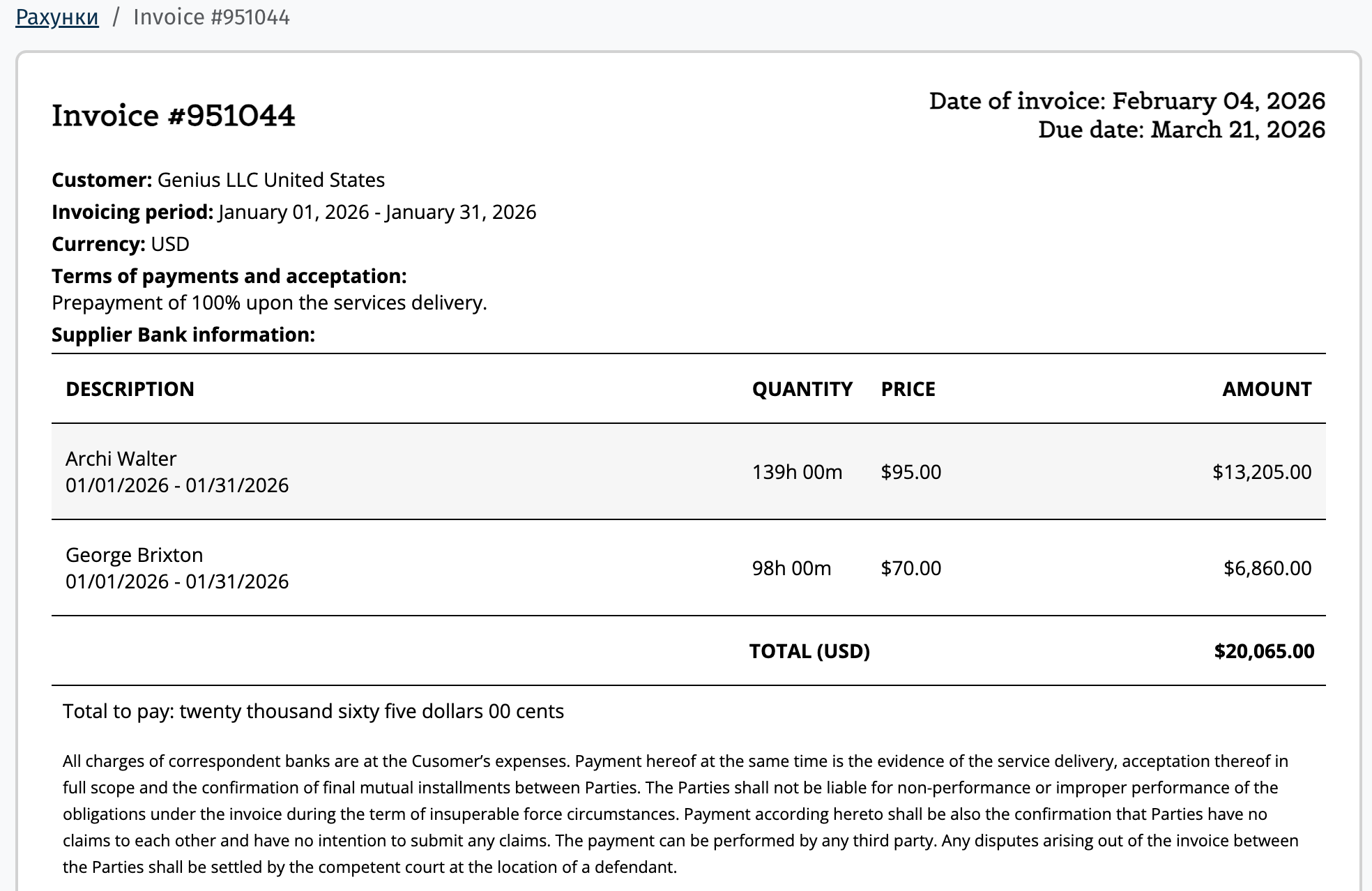
Create an invoice on the project — it lands in accounts receivable
-
Move the invoice to Sent status so it's picked up by the P&L report.
-
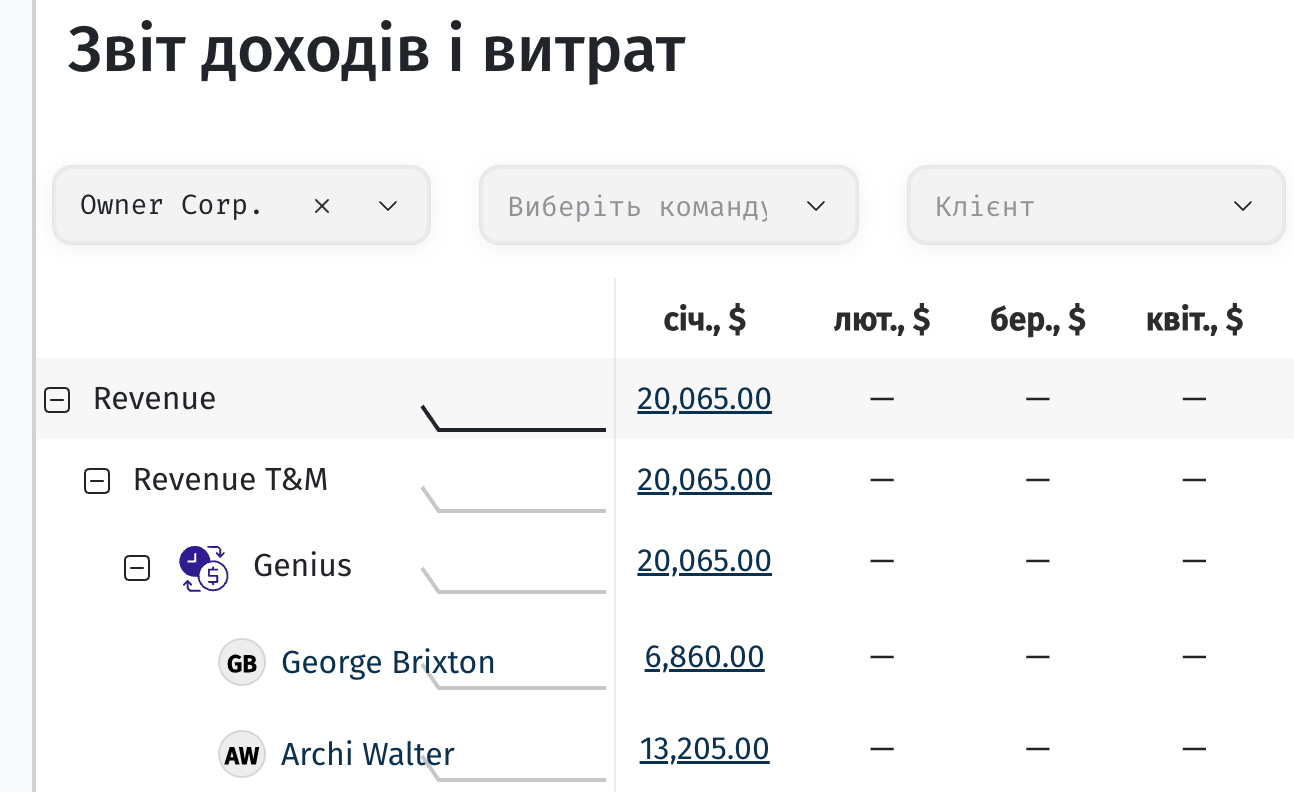
Generate the P&L report for the relevant period.
-
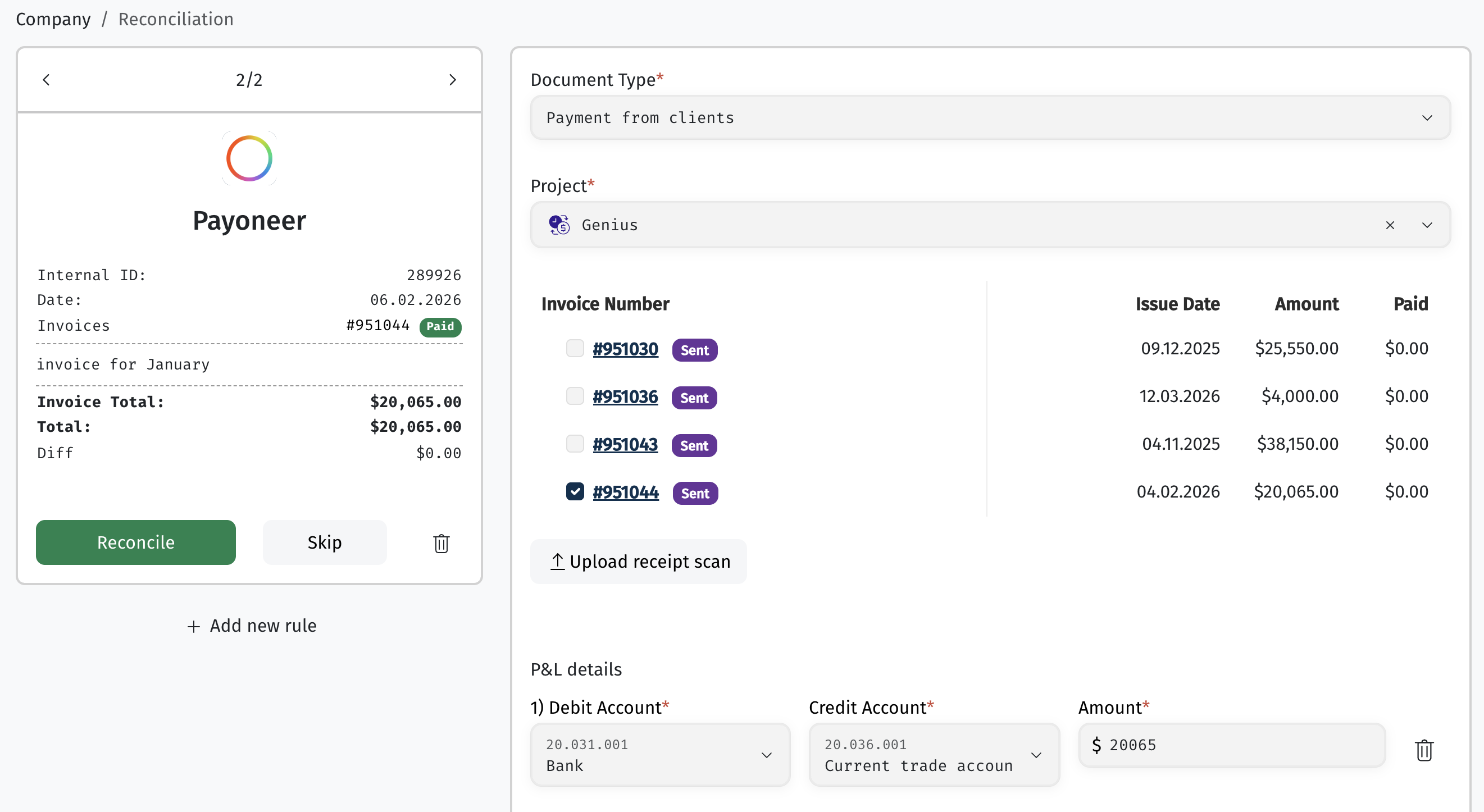
Create an income transaction (so the operation shows up in Cashflow).
-
Reconcile the transaction, making sure to link it to the corresponding invoice — otherwise the data won't post correctly.
1.
3.
5.
What happens in the books:
-
Invoice issued → a Debit appears on the "Accounts Receivable" account — the client now owes us money — and a Credit appears on the "Sales" account — we recognized the income.
-
Client pays → a Credit on "Accounts Receivable" (the debt is closed) and a Credit on "Retained Earnings" (profit increases).
-
End of period → the "Sales" account is zeroed out, and the profit remains accumulated in Retained Earnings.
Once reconciled, the result is visible in the report:
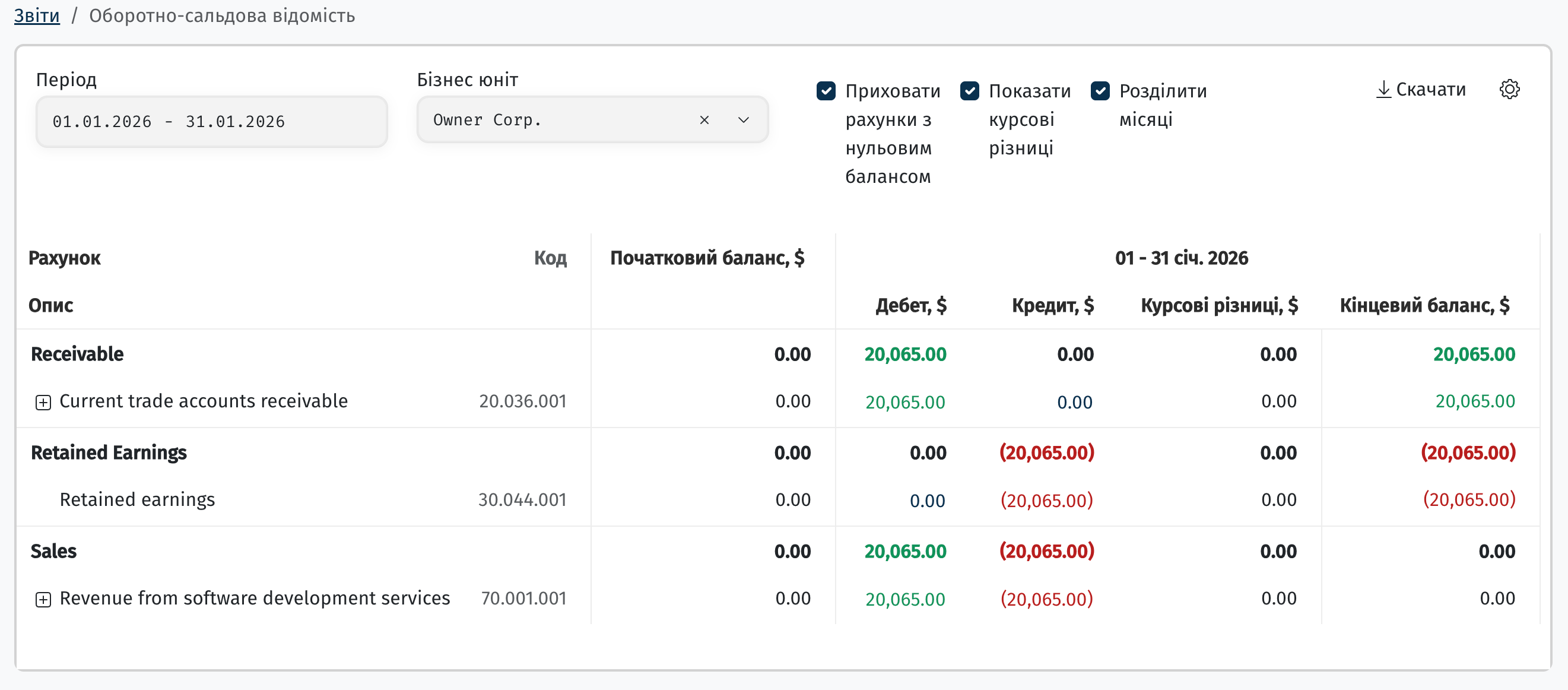
Example 2. Salary payout
For the company, a salary payout is an expense (a credit on the company's account); for the employee, it's an inflow (a debit on their account).
Steps in the system:
-
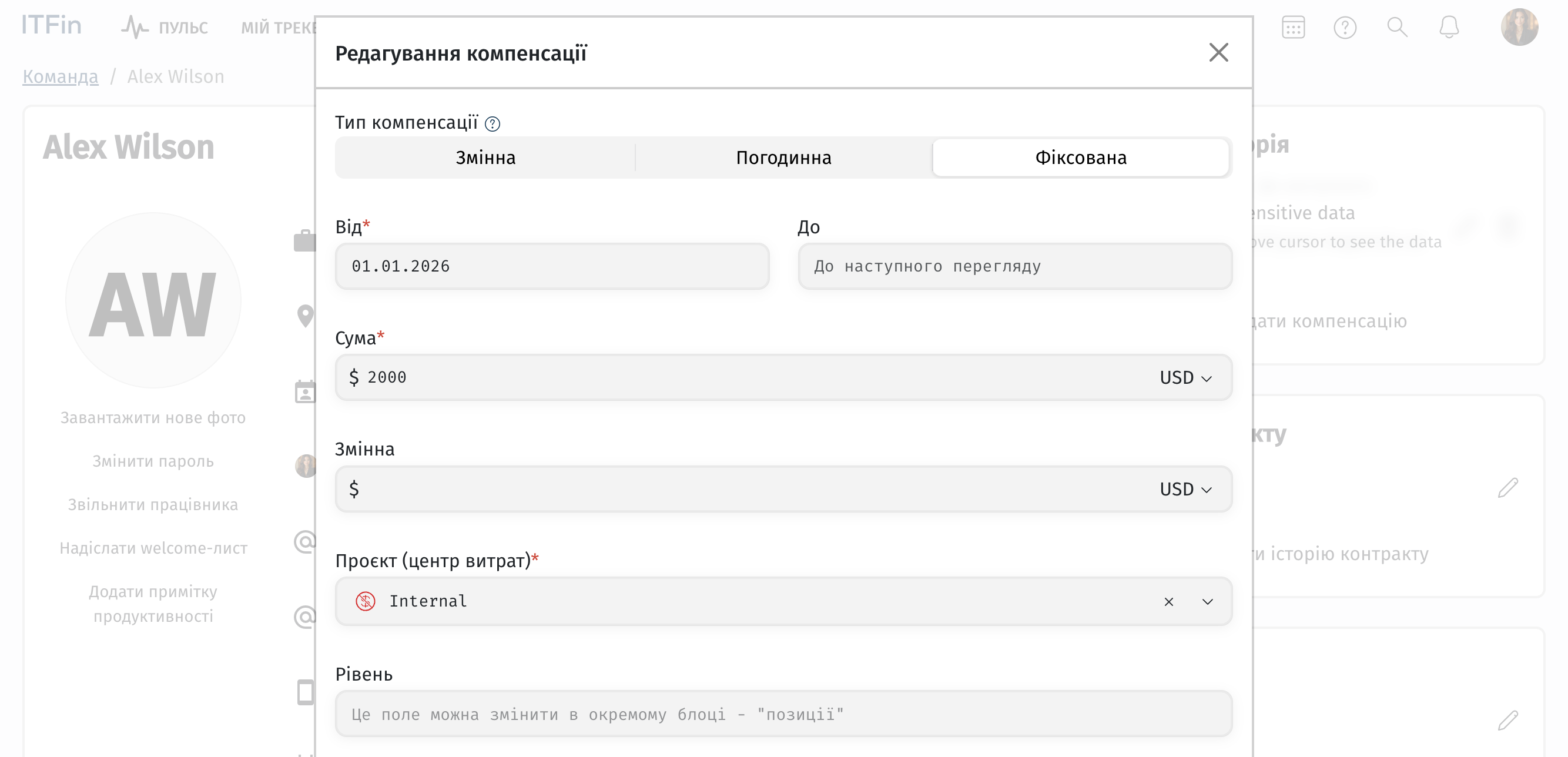
Create the employee's profile, set their compensation amount, payout method, and the project (cost center) the salary will be paid from.
2. Create an invoice for the employee's work, reconcile the transaction, and link it to the invoice (same as in Example 1).
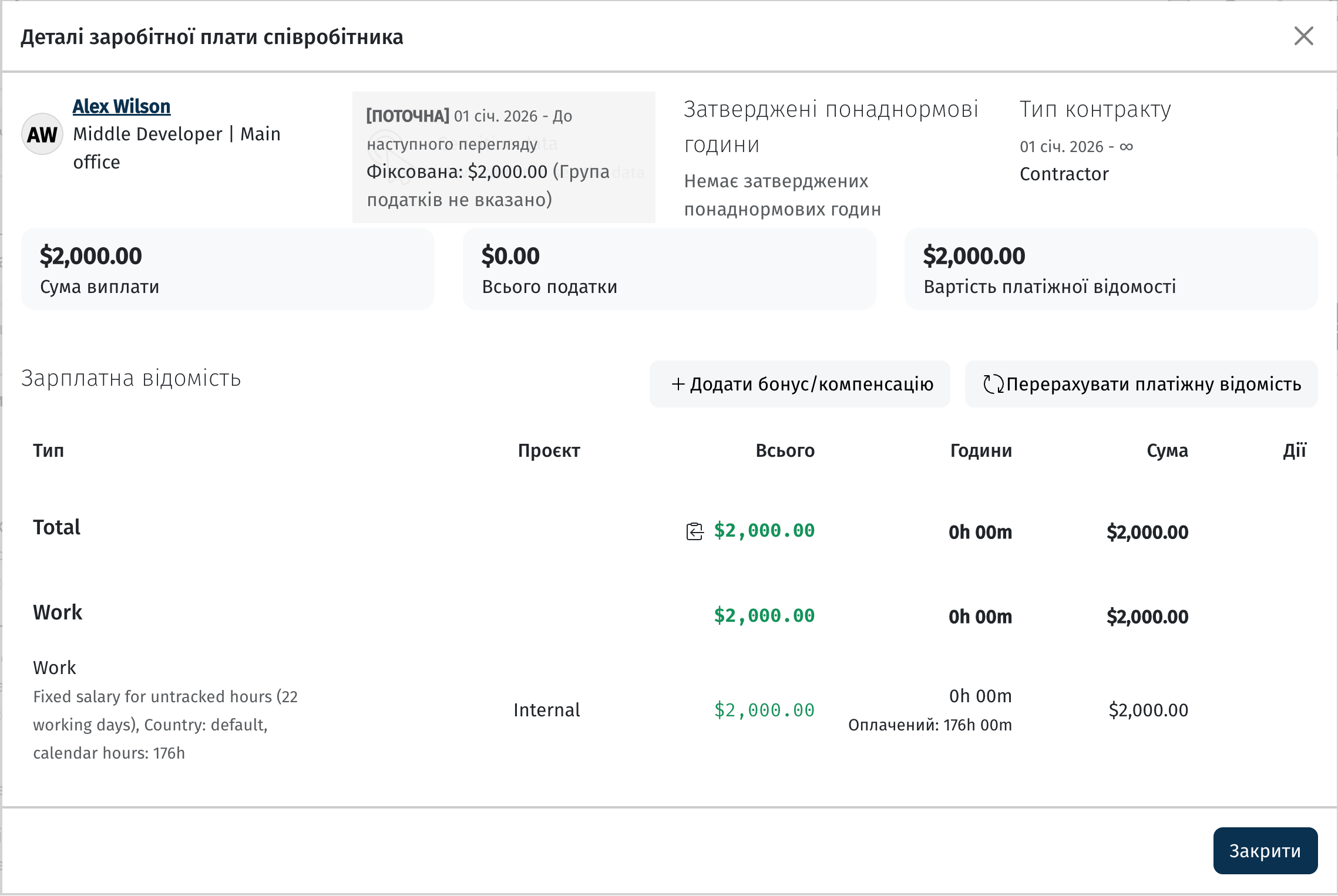
3. Pay the salary using one of two ways: through the Payroll register ("Payout" tab → "Pay" button), or manually — by creating and reconciling a transaction of type "Expense".
What happens in the books:
-
Salary accrued → a Debit on the "Salary expense" account and a Credit on the "Payroll payable" account (debt owed to the employee).
-
Salary paid → a Debit on "Payroll payable" (the debt is closed) and a Credit on the "Bank/Cash" account (there's less money in the account).
-
End of period → the "Salary expense" account is zeroed out, and the company's profit decreases by the payout amount.
Example 3. Purchase invoice
Here the entries are the opposite of Example 1: Credit — payment to the vendor, Debit — the asset arriving on the company's balance sheet.
Steps in the system:
-
Create a purchase invoice with an expense category (for example, "Fixed Assets / Computer Equipment").
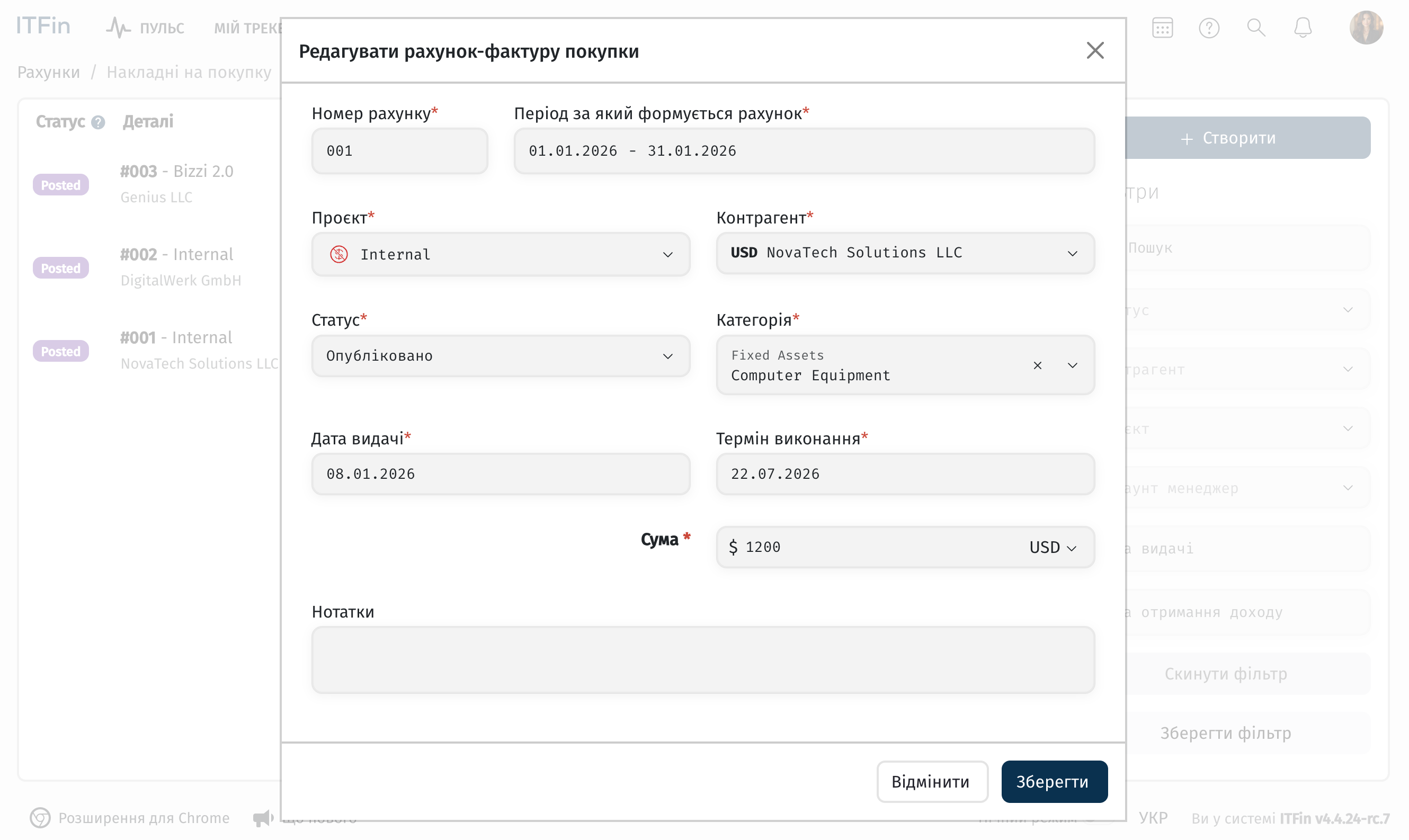
2. Create a transaction of type "Expense" and link it to the purchase invoice.
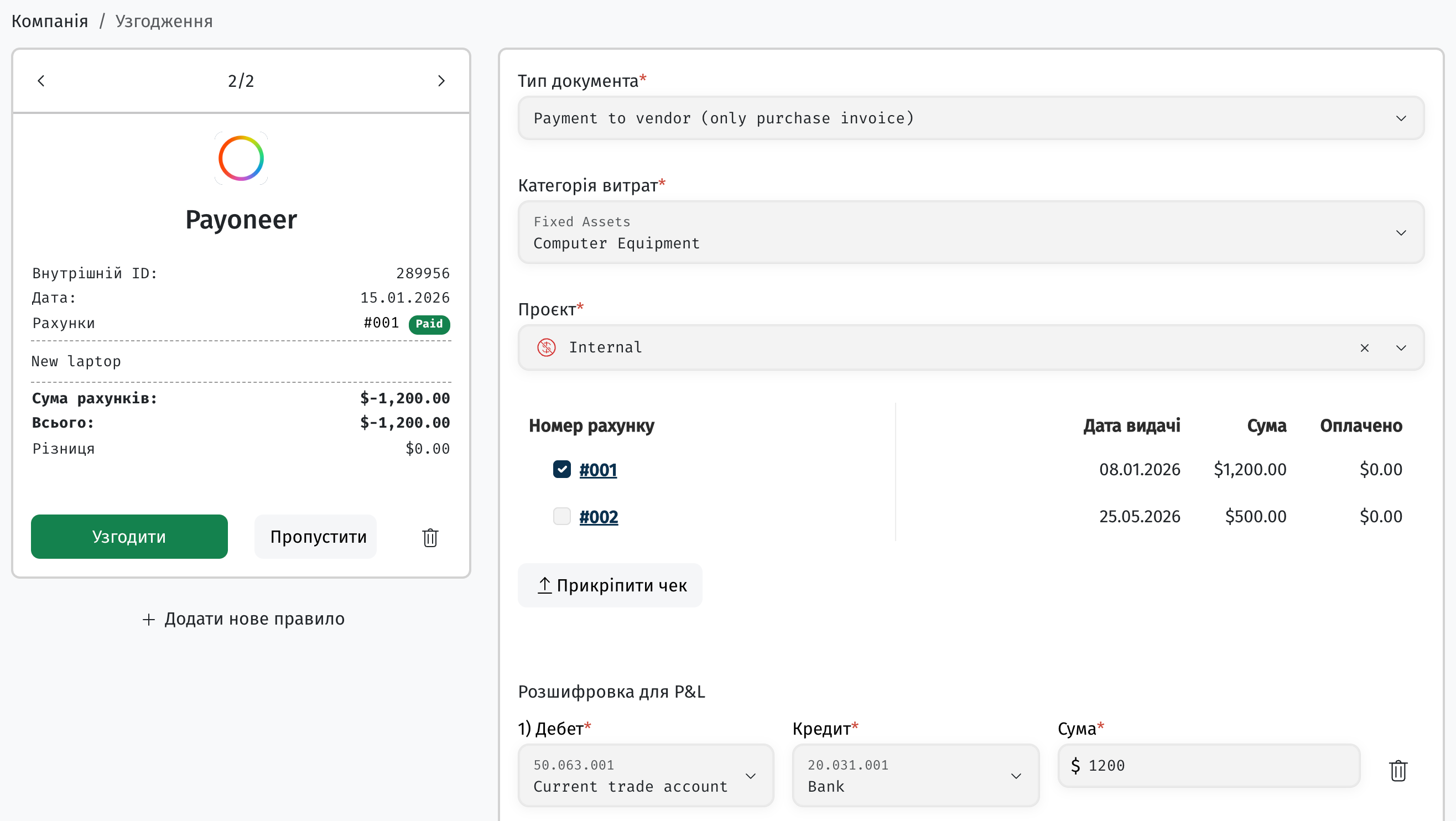
3. Reconcile the transaction.
4. Be sure to generate the Payroll register for the month so transactions get refreshed and pulled into the report.
5. Check the result in the Trial Balance: first the accounts payable (Credit), then the fixed assets (Debit).



What happens in the books:
-
Purchase invoice created → a Debit on the "Fixed Assets / IT equipment" account (the asset is added to the balance sheet) and a Credit on the "Accounts payable" account (we recognized a debt to the vendor).
-
Vendor paid → a Debit on "Accounts payable" (the debt is closed) and a Credit on the "Bank/Cash" account (there's less money in the account).
Summary: the laptop shows up in the company's assets, the balance in the bank account decreased by its cost, and the debt to the vendor is settled — the balance ties out.
Report logic summary
Debit is always what the company received (an asset, an inflow);
Credit is what the company gave up (an expense, settling a debt).
A month's closing balance automatically becomes the next month's opening balance — that's how the report builds a continuous picture of the movement of funds for every account.