Depreciation is reflected in the Depreciation & Amortization line of the P&L report and begins to accumulate from the following month after the inventory is put into operation.
In the ITFin system, depreciation is calculated using the straight-line method, with the calculation performed using the formula: (original cost - liquidation value) / depreciation term.
Depreciation is carried out according to the selected inventory category. Inventory categories can be set in the Company > Settings > Inventory Categories section. Access to this section is enabled through the scope

In the category window, there are fields for the Amortization time, where the depreciation period in months is specified, and the Liquidation amount. If the category is designated for low-value assets (such as a computer mouse, headphones, etc.), the Amortization time should be set to 0. Such assets will be immediately expensed. Otherwise, depreciation will be calculated starting from the beginning of the month following the date of putting the asset into operation (if you specify 1, the expense will occur in the next month).

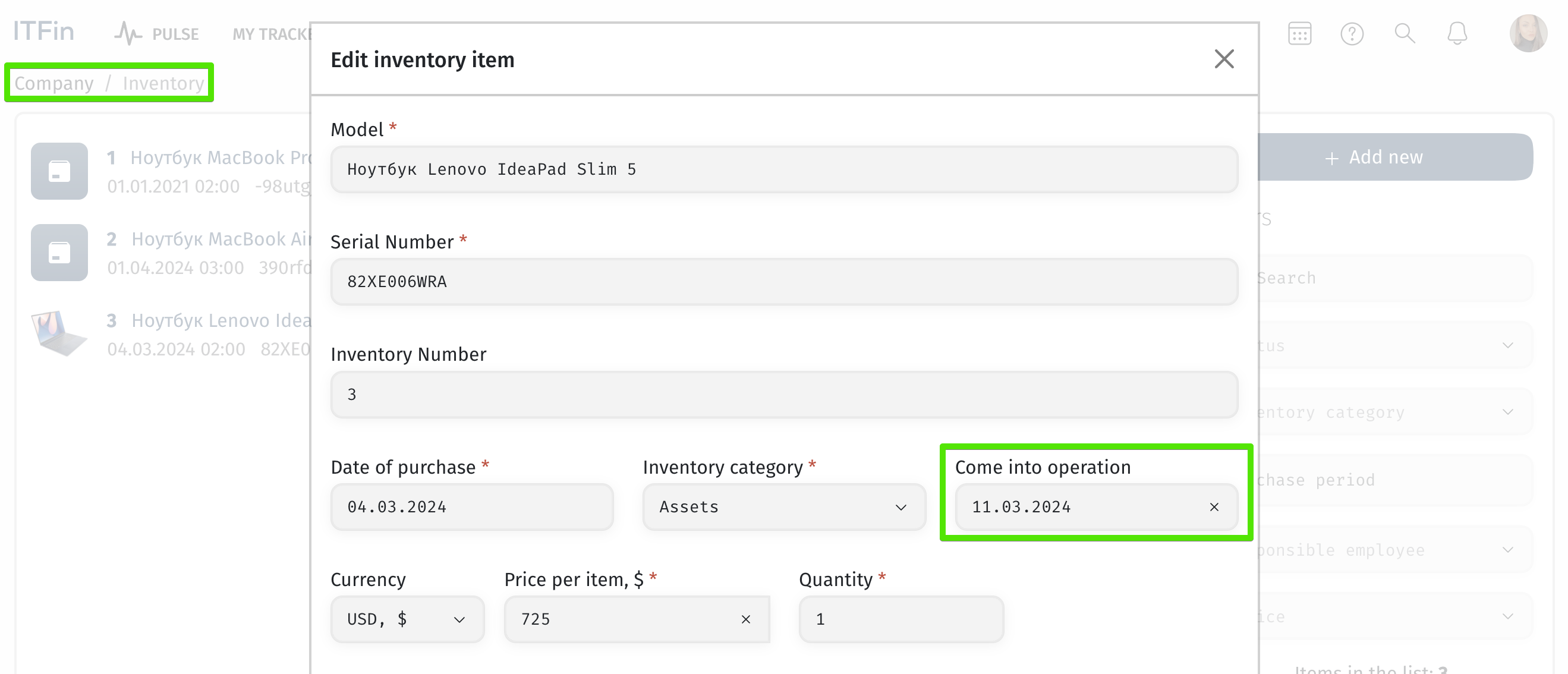
The field Comes into operation for the date of putting into operation appears if the selected category has a specified amortization period.
Inventory Disposal in the ITFin System: Sale and Write-off
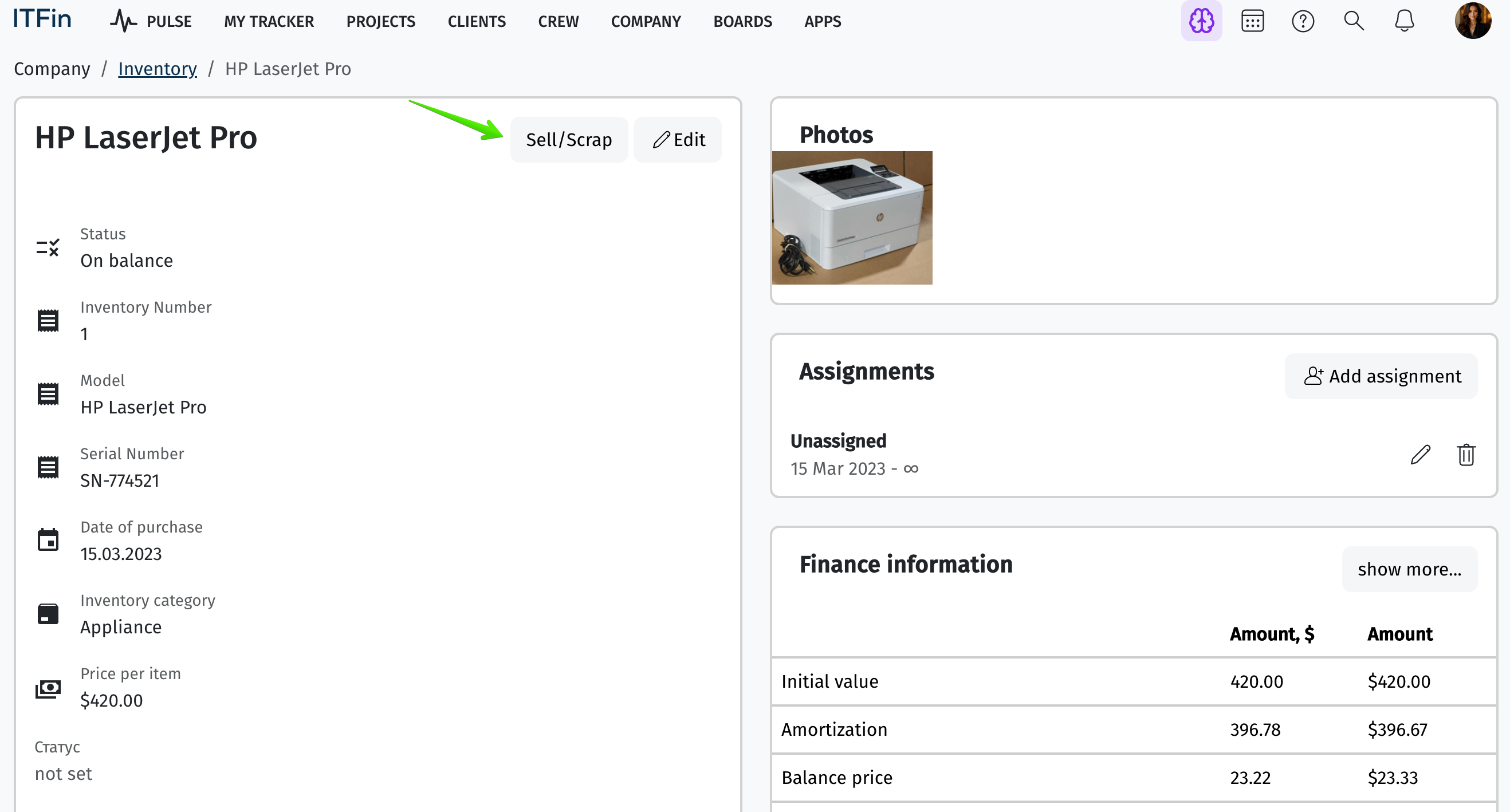
An inventory unit (Fixed Asset) in ITFin goes through the following lifecycle: On Balance → monthly amortization → disposal. Disposal comes in two forms — sale (the asset is sold for payment) and write-off (defect/unfit for use, no payment). Both are triggered from the inventory item's card via the "Sell/Scrap" button, which opens the "Edit inventory item" modal with a Status field ("On balance" → "Sold" or "Written off") and the transaction date.
Case 1: Sale of Inventory
Trigger: the asset's status is changed to "Sold," and the sale amount is entered.
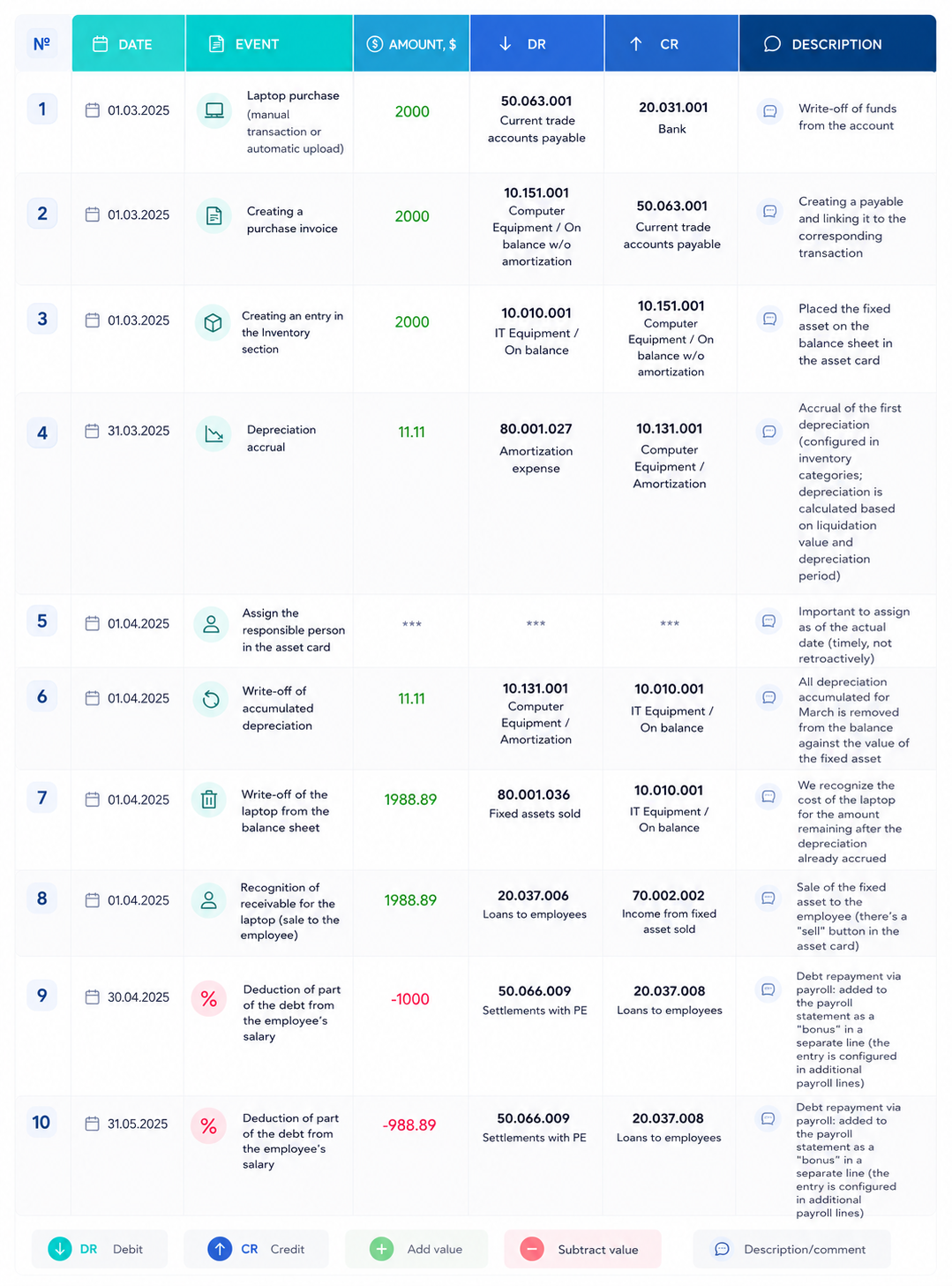
Double entries:
In other words, a sale generates two postings: one removes the asset from the balance at its original cost (cost of disposal, account 80.001.036), the other records income for the full sale amount (account 70.002.002). The financial result of the sale is the difference between the two (income minus cost of disposal), not the sale amount itself.

Where it appears in the P&L:
• 70.002.002 Income from fixed asset sold → Other Revenue line
• 80.001.036 Fixed assets sold → recommendation: a separate "Asset Disposals" line (below EBITDA, next to Amortization) — to see the net gain/loss from sales separately from write-off amounts.
Sale of Fixed Assets to an Employee
Depreciation Distribution Across Projects
How depreciation is distributed in the P&L depends on whether the asset is assigned to a specific employee or to a department/office.
If the asset is assigned to an employee, monthly depreciation is distributed across projects proportionally to the hours that employee tracked on each project — following the same logic as their salary.
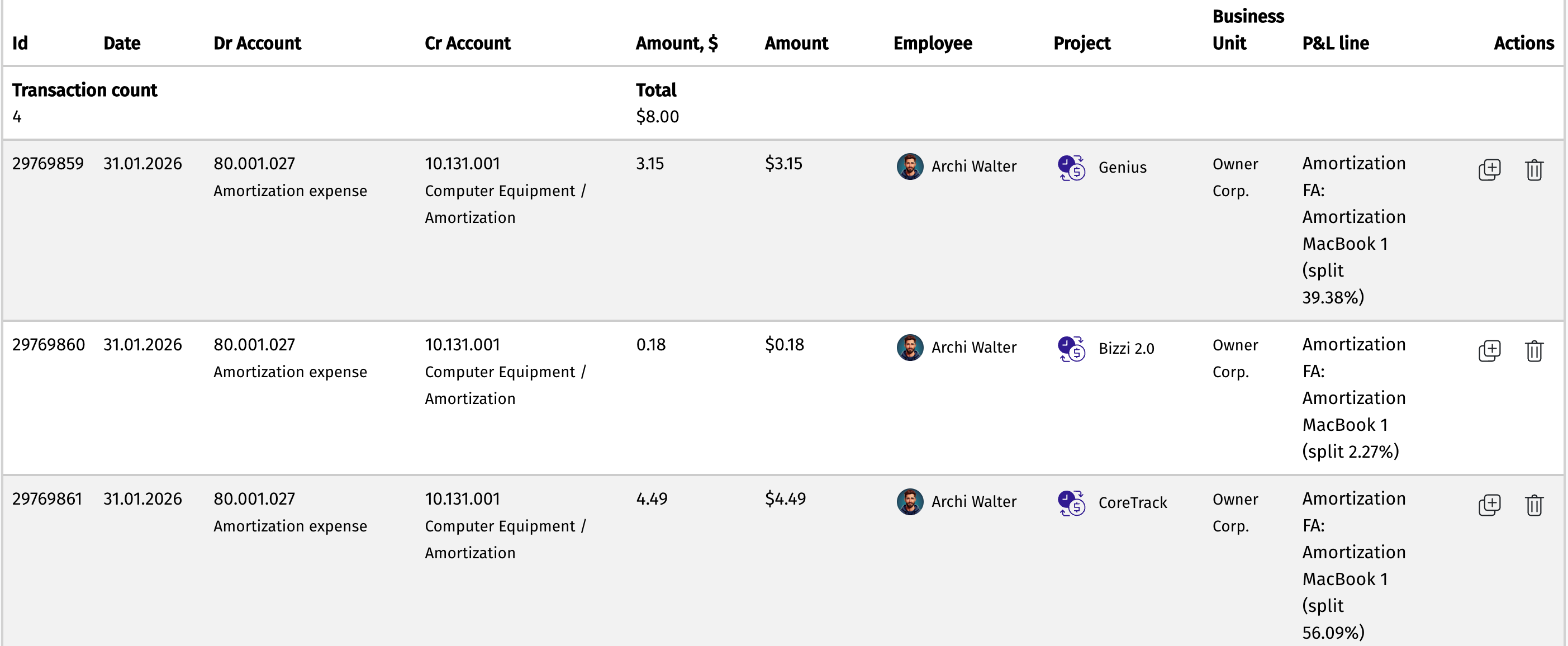
Example: An employee's monthly depreciation is $50. They tracked 40% of their working time on Project 1 and 60% on Project 2.
-
Project 1: $50 × 40% = $20
-
Project 2: $50 × 60% = $30
These amounts will appear in the Depreciation & Amortization line of the respective projects in the P&L report.
If the asset is assigned to a department or office (rather than a specific employee), no project distribution occurs — the full depreciation amount (100%) is shown against that department.
📌 To stop an asset's depreciation from being split across projects, change its assignment (Assets Assignment) from a specific employee to a department or office.